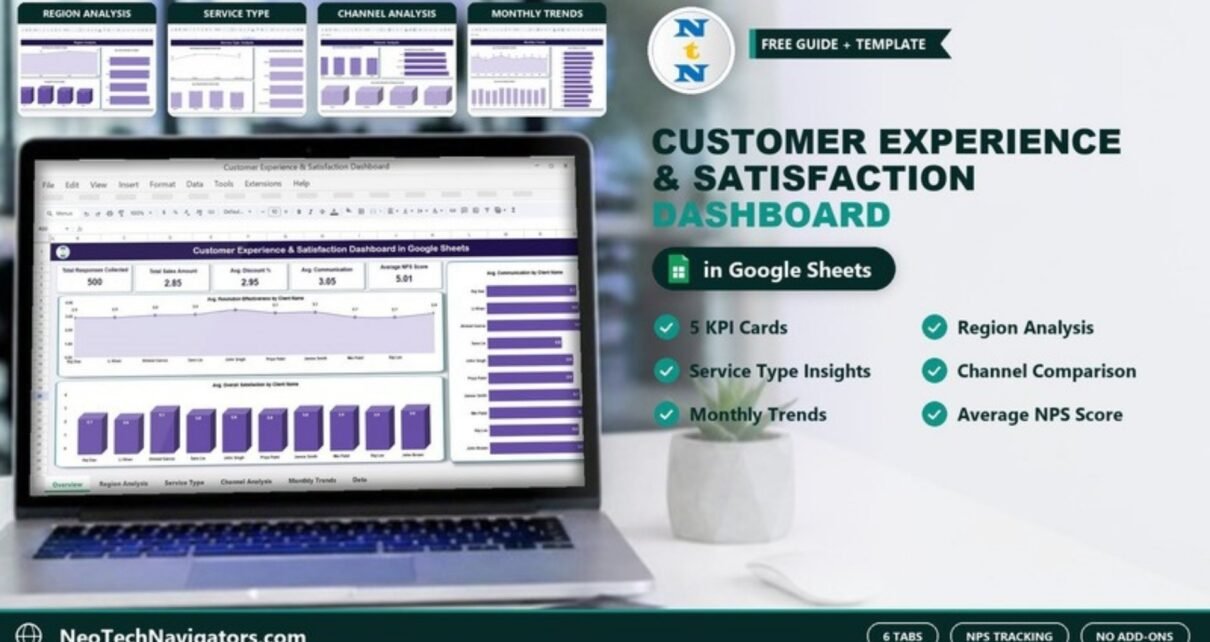
The Customer Experience & Satisfaction Dashboard in Google Sheets turns a simple list of customer feedback scores into a six-tab report you can read in a minute. It shows how many responses you collected, how customers rate overall satisfaction, service quality and communication, and how the average NPS score moves across clients, regions, service types, response channels and months.
It is built for service managers, support leads, account managers and small business owners who already collect feedback (through a form, a call script or a survey tool) but have no clear way to see what the numbers are saying. Everything runs on Google Sheets, so there is nothing to install and your team can work in the same file.
Below you will find what each tab shows, the metrics behind the cards and charts, how to load your own data, three practical use cases and the limits you should know about before you buy.
🎥 Watch the Video Tutorial
Get the Customer Experience & Satisfaction Dashboard
What Problem Does a Customer Experience Dashboard Solve?
Most teams collect feedback scores and then leave them in a long table. Averages get calculated once for a monthly meeting and forgotten. Problems such as one region rating you lower than the others, or one channel producing weaker scores, stay hidden because nobody slices the data.
This customer satisfaction dashboard does the slicing for you. Each new row in the Data Sheet flows into the cards and charts, so you can answer everyday questions quickly:
- Which clients rate our communication lowest?
- Is one region less satisfied than the others?
- Do customers who reply by email score us differently from those we meet in person?
- Which months had a dip in satisfaction or timeliness?
The Six Tabs at a Glance
| Tab | What it shows |
|---|---|
| Overview | 5 KPI cards plus 3 charts by Client Name |
| Region Analysis | Responses, satisfaction and NPS by region (East, West, South, North) |
| Service Type Analysis | Responses, resolution effectiveness and communication by service type |
| Channel Analysis | Service quality, NPS and satisfaction by response channel |
| Monthly Trends | Overall satisfaction, timeliness and service quality by month |
| Data Sheet | The raw feedback records that feed every chart |
Overview Tab: KPI Cards and Client Charts
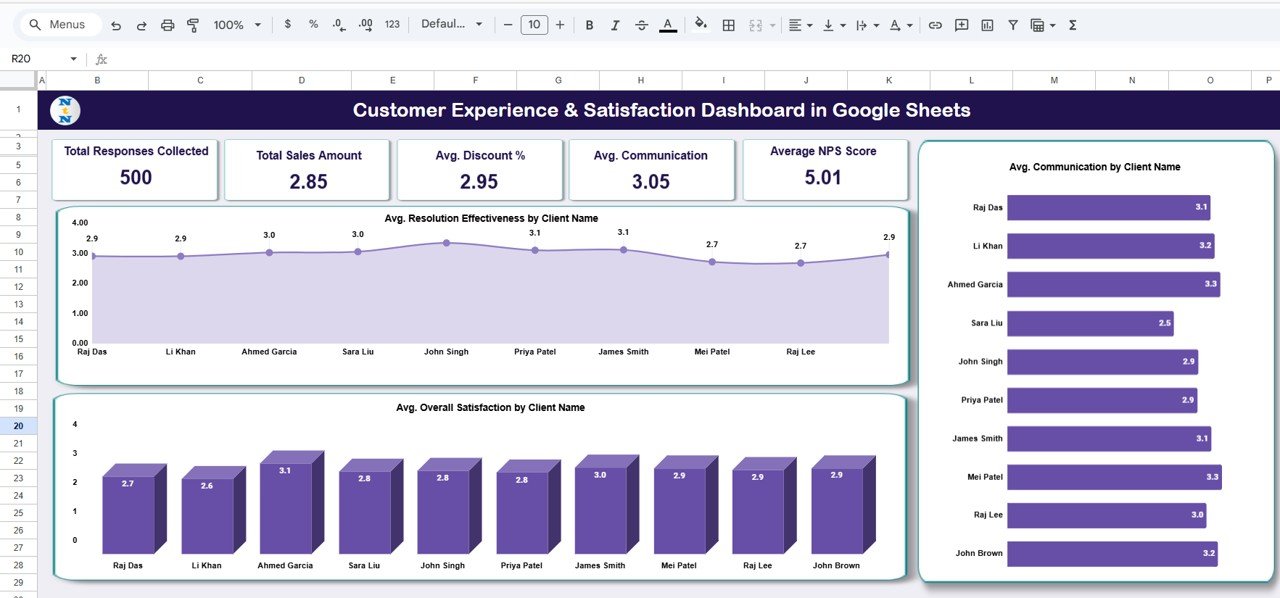
The Overview tab is the page you open first. The top row holds five cards. The product listing names them Total Responses Collected, Avg. Overall Satisfaction, Avg. Service Quality, Avg. Communication and Average NPS Score. In the sample file the dashboard shows 500 responses, an Avg. Communication of 3.05 and an Average NPS Score of 5.01.
One honest note: in the screenshot below, the captions on the second and third cards still read “Total Sales Amount” and “Avg. Discount %”. These are leftover labels. When you open your copy, check those two card titles and rename them if needed so your team is not confused.
Under the cards you get three charts:
- Avg. Resolution Effectiveness by Client Name: an area chart. In the sample, most labelled client scores sit between 2.7 and 3.1, with John Singh’s point standing a little above the rest.
- Avg. Overall Satisfaction by Client Name: a column chart. Ahmed Garcia leads at 3.1 and Li Khan is lowest at 2.6.
- Avg. Communication by Client Name: a bar chart. Sara Liu is lowest at 2.5, while Ahmed Garcia and Mei Patel reach 3.3.
Region Analysis Tab
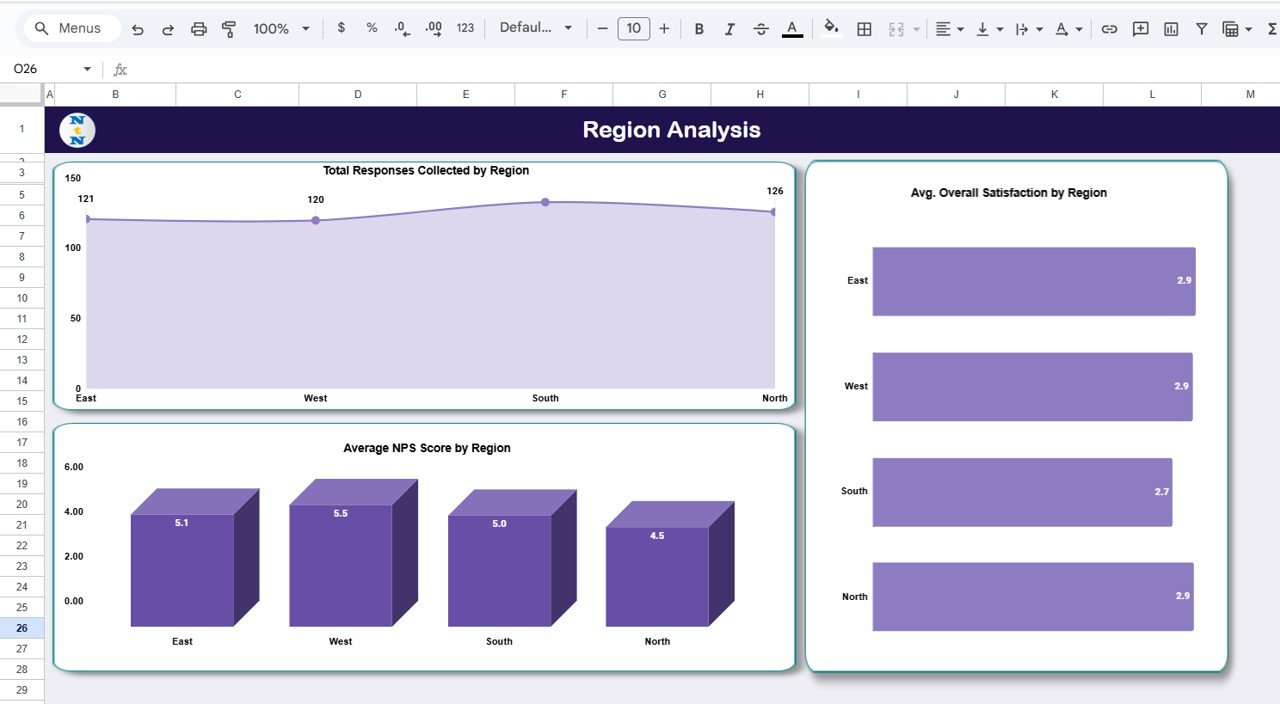
This tab compares the four regions in the data: East, West, South and North. It has three charts:
- Total Responses Collected by Region: East 121, West 120 and North 126 in the sample, with South the highest.
- Avg. Overall Satisfaction by Region: East, West and North all at 2.9, South lower at 2.7.
- Average NPS Score by Region: West highest at 5.5, North lowest at 4.5.
Reading the three charts together is the useful part. In the sample, South sends the most feedback but has the lowest satisfaction, so it is the first region a manager would look into.
Service Type Analysis Tab
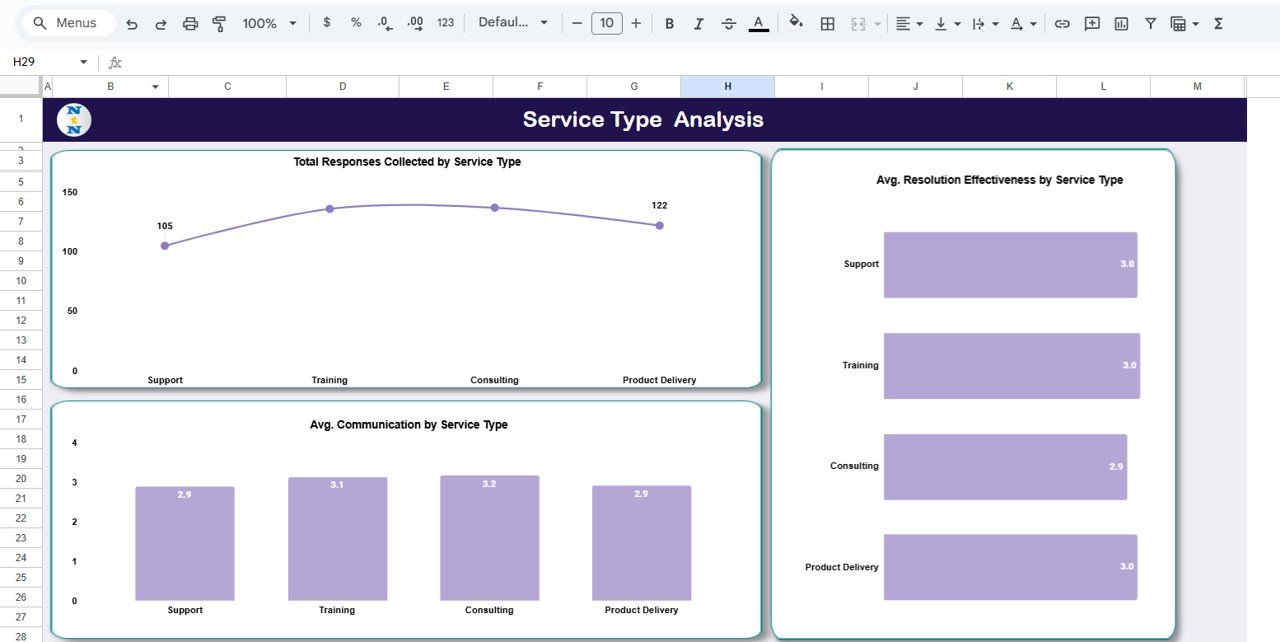
The sample data uses four service types: Support, Training, Consulting and Product Delivery. The charts are:
- Total Responses Collected by Service Type: Support 105 and Product Delivery 122 are labelled, with Training and Consulting slightly higher.
- Avg. Resolution Effectiveness by Service Type: Support, Training and Product Delivery at 3.0, Consulting at 2.9.
- Avg. Communication by Service Type: Consulting 3.2, Training 3.1, Support and Product Delivery 2.9.
Channel Analysis Tab
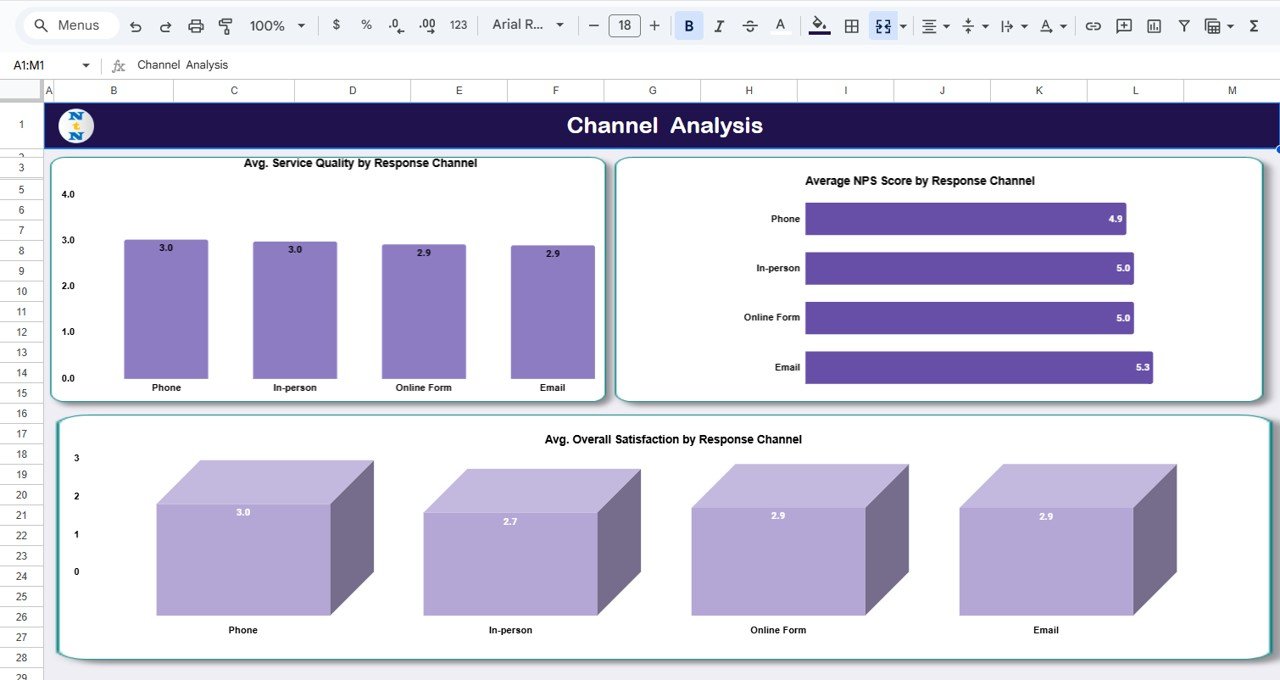
Feedback in the sample arrives through four response channels: Phone, In-person, Online Form and Email.
- Avg. Service Quality by Response Channel: Phone and In-person 3.0, Online Form and Email 2.9.
- Average NPS Score by Response Channel: Email highest at 5.3, Phone lowest at 4.9.
- Avg. Overall Satisfaction by Response Channel: Phone 3.0, In-person 2.7, Online Form and Email 2.9.
A channel gap does not always mean the service was worse. People who fill in an online form may answer differently from people asked face to face, so use this tab to spot patterns and then check them in conversation.
Monthly Trends Tab
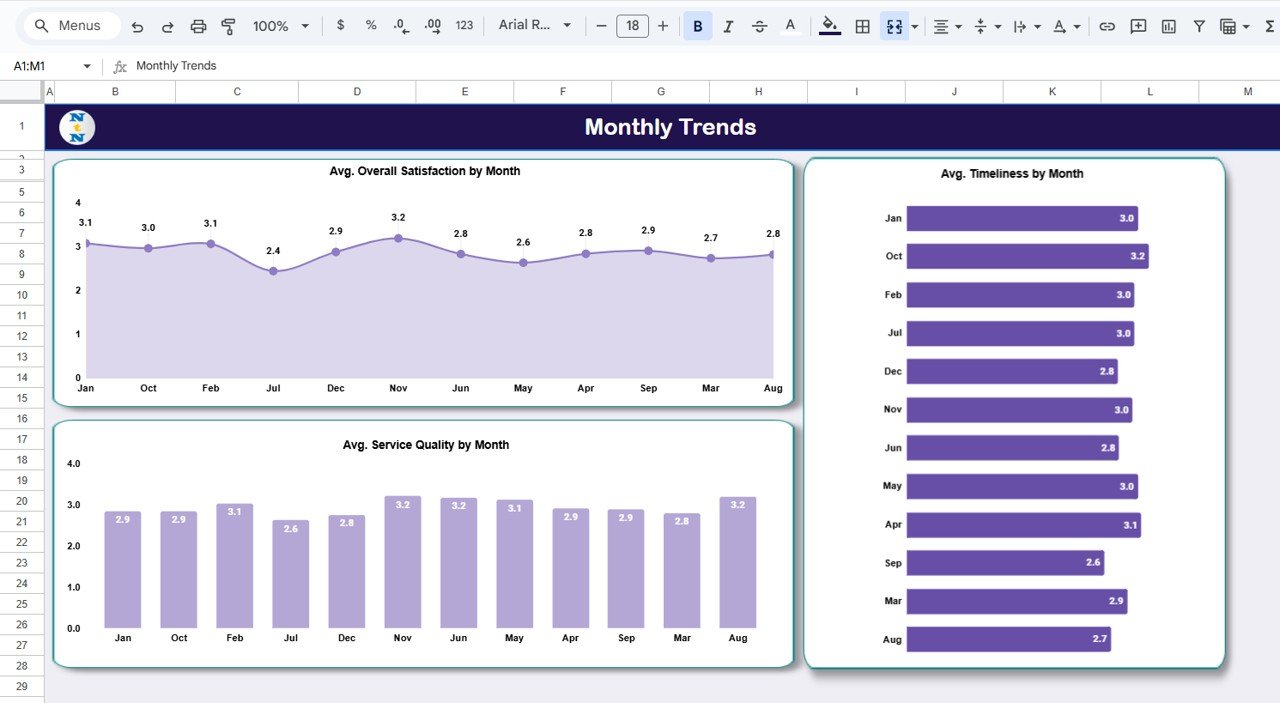
This tab tracks three averages month by month: Avg. Overall Satisfaction by Month, Avg. Timeliness by Month and Avg. Service Quality by Month. In the sample, overall satisfaction ranges from 2.4 in July to 3.2 in November. Timeliness is weakest in September (2.6) and strongest in October (3.2).
The months in the sample charts appear in the order they first occur in the data (Jan, Oct, Feb, Jul and so on), not in calendar order. If you prefer a January to December axis, sort the summary range behind the chart by month number.
Data Sheet Tab
Every chart reads from this sheet. Each row is one feedback response. The visible columns are Date, Client ID, Client Name, Region, Service Type, Response Channel, Overall Satisfaction, Service Quality, Communication, Timeliness and Resolution Effectiveness, with further score columns to the right (including the score used for the NPS card). Sample scores use a small numeric scale, for example Overall Satisfaction values from 1 to 5.

Metrics Used in the Dashboard
| Metric | What it measures | How it is calculated | Better when |
|---|---|---|---|
| Total Responses Collected | Feedback volume | Count of rows in the Data Sheet | Higher (more reliable averages) |
| Avg. Overall Satisfaction | General happiness with your service | Average of the Overall Satisfaction column | Higher |
| Avg. Service Quality | How customers rate delivery quality | Average of the Service Quality column | Higher |
| Avg. Communication | Clarity and helpfulness of contact | Average of the Communication column | Higher |
| Avg. Timeliness | Speed of response and delivery | Average of the Timeliness column | Higher |
| Avg. Resolution Effectiveness | Whether issues were actually fixed | Average of the Resolution Effectiveness column | Higher |
| Average NPS Score | Likelihood to recommend | Average of the NPS score column | Higher |
Other KPIs Worth Tracking (Not Included in the Template)
The dashboard averages the NPS score column. The classic Net Promoter Score is calculated differently: the percentage of promoters (9 or 10 on a 0 to 10 scale) minus the percentage of detractors (0 to 6). If your survey uses a 0 to 10 scale, you can add it in a spare cell like this:
=COUNTIF(NPS_Range,">=9")/COUNT(NPS_Range) - COUNTIF(NPS_Range,"<=6")/COUNT(NPS_Range)Format the cell as a percentage. Other useful additions are a CSAT % (share of 4 and 5 ratings) and a count of low scores that need a follow-up call.
How to Use It With Your Own Data
- Make a copy of the file in your Google Drive (File > Make a copy).
- Open the Data Sheet tab and clear the sample rows, keeping the header row.
- Paste or type your feedback, one response per row, using the same column order. Keep region, service type and channel names consistent.
- If you collect feedback with Google Forms, map the form questions to these columns or copy responses across weekly.
- Go back to the Overview tab and confirm the cards and charts picked up the new rows. Rename any card captions that do not match.
- Review the Region, Service Type, Channel and Monthly Trends tabs before each team meeting.
If you want to learn how dashboards like this are put together, the pivot tables and dashboards course on NextGenTemplates Academy walks through summaries, charts and layout step by step.
Three Real-World Use Cases
- B2B service firm: account managers check the client charts before quarterly reviews and prepare for clients whose communication score has slipped.
- Training provider: compare Training against Consulting scores to see which offering needs better follow-up material.
- Multi-branch support team: use the Region tab to find the branch with the most responses but the lowest satisfaction, then review its process first.
Best Practices
- Use the same rating scale for every question so averages can be compared.
- Wait for enough responses before acting on a single client or month; one bad score can move a small average a lot.
- Add data validation (dropdowns) to Region, Service Type and Response Channel to avoid spelling variations.
- Protect the dashboard tabs (Data > Protect sheets and ranges) so only the Data Sheet is edited.
- Pair the numbers with comments. The dashboard tells you where to look; customer comments tell you why.
Who Should Not Use This Template
This is a reporting dashboard, not a survey tool. It does not send surveys, store free-text comments for analysis or score sentiment. Very large programmes with tens of thousands of responses a month, or teams that need automatic alerts, will be better served by a dedicated CX platform. It also assumes your feedback already has the columns listed above; if you only collect a single star rating, most charts will have little to show.
If you need a simpler logging sheet first, start with a customer feedback tracker in Google Sheets, or see the Customer Experience & Service Quality Dashboard for a version of this layout focused on service delivery.
Related reading: customer satisfaction dashboard in Google Sheets, NPS dashboard in Google Sheets and customer experience KPI dashboard in Google Sheets. Prefer Excel? There is also a customer experience dashboard in Excel.
Frequently Asked Questions
What does the Customer Experience & Satisfaction Dashboard track?
It tracks total responses, overall satisfaction, service quality, communication, timeliness, resolution effectiveness and an average NPS score, broken down by client, region, service type, response channel and month.
Is the Average NPS Score the same as a standard Net Promoter Score?
No. The card shows the average of the NPS score column. A standard NPS subtracts the percentage of detractors from the percentage of promoters. You can add that calculation using the formula shown above.
Can I connect Google Forms to this dashboard?
Yes, as long as the form answers land in the same column order as the Data Sheet. Many teams copy new form responses into the Data Sheet once a week.
Can I change the regions, service types or channels?
Yes. Replace the sample values in the Data Sheet with your own names. Keep the spelling consistent so each name is grouped correctly in the charts.
Do I need any add-ons or paid software?
No. The dashboard runs in a standard Google Sheets file with a Google account.
How many responses do I need before the charts are useful?
There is no fixed number, but a few dozen responses per region or channel gives far steadier averages than five or six.
Wrapping Up
The Customer Experience & Satisfaction Dashboard in Google Sheets gives you one place to see how customers rate you, and where scores differ by client, region, service type, channel and month. Load your own feedback, check the card captions, and use the region and channel tabs to decide where to act first.
Get the Customer Experience & Satisfaction Dashboard
📅 Last updated: October 2026