Monthly marketing reports often turn into a long tour of screenshots from analytics, ad platforms and email tools. Leadership usually wants something simpler: are the main numbers on target, and are they better or worse than last year? The Digital Marketing KPI Scorecard in HTML answers that on one screen, with ten KPI cards, a traffic-light status on each, month-to-date and year-to-date views, and a comparison against target or previous year.
This guide covers the three pages of the scorecard as it ships, explains how the change and status figures are worked out using the sample numbers, and shows how to load your own data from Excel. It is written for marketing managers, agency account leads and freelance marketers who report on several channels each month and want a clean scorecard that opens in any modern browser.
🎥 Watch the Video Tutorial
Get the Digital Marketing KPI Scorecard
What the Scorecard Is For
A KPI scorecard is different from a full marketing dashboard. A dashboard explores campaigns, channels and audiences in depth. A scorecard keeps a short, fixed list of measures and shows, month after month, whether each one is on track. That makes it ideal for a leadership update, a client review or your own monthly check-in.
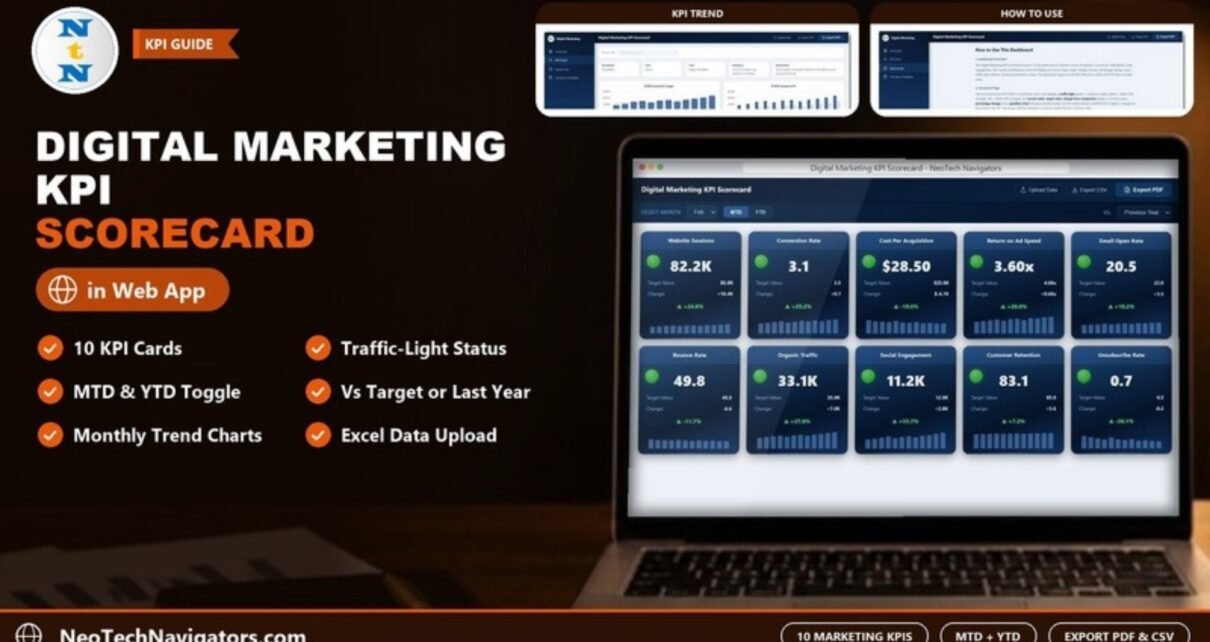
The template covers ten KPIs spread across eight groups: Acquisition, Conversion, Paid Media, Email, Engagement, SEO, Social and Retention. A left sidebar links the Scorecard, KPI Trend and How to Use pages (plus a Get More Templates link), and the header holds Upload Data, Export CSV and Export PDF buttons.
The 10 KPIs in the Digital Marketing KPI Scorecard in HTML
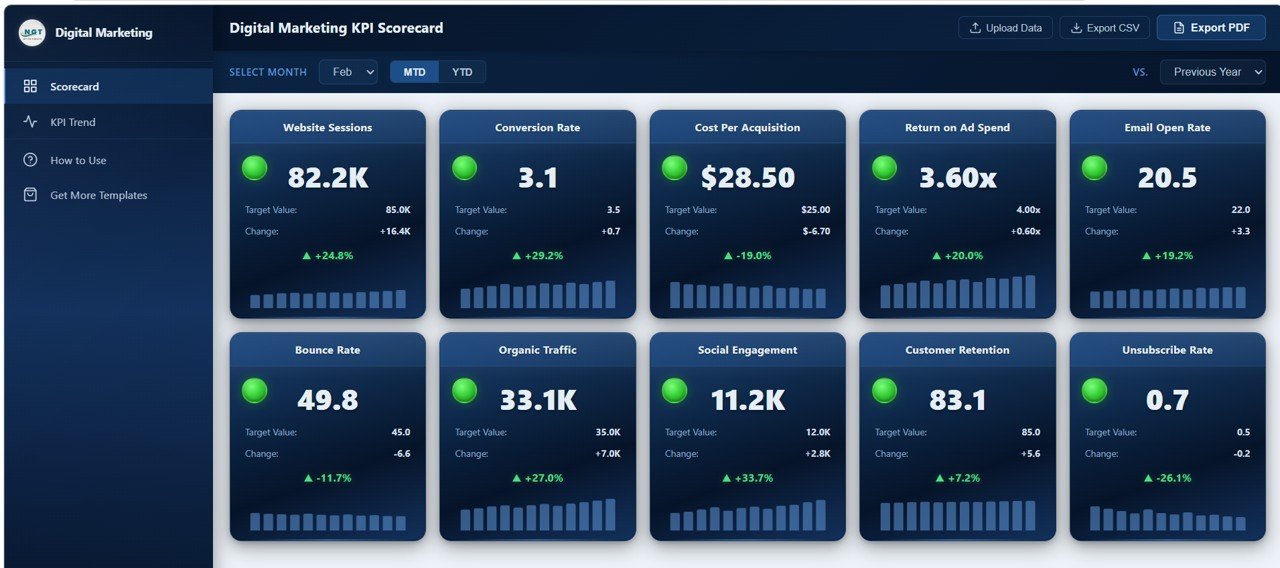
The sample values below are from the Scorecard page with Feb, MTD and Vs. Previous Year selected.
| KPI | What it measures | Feb MTD actual | Target | Better when |
|---|---|---|---|---|
| Website Sessions | Total website visits from all traffic sources in the period | 82.2K | 85.0K | Higher |
| Conversion Rate | Share of visits that complete a goal, such as a sale or sign-up | 3.1 | 3.5 | Higher |
| Cost Per Acquisition | Marketing spend per new customer or conversion | $28.50 | $25.00 | Lower |
| Return on Ad Spend | Revenue earned for each unit of ad spend | 3.60x | 4.00x | Higher |
| Email Open Rate | Share of delivered emails that are opened | 20.5 | 22.0 | Higher |
| Bounce Rate | Share of sessions that leave without further interaction | 49.8 | 45.0 | Lower |
| Organic Traffic | Visits that arrive from unpaid search results | 33.1K | 35.0K | Higher |
| Social Engagement | Interactions on social posts (likes, comments, shares) | 11.2K | 12.0K | Higher |
| Customer Retention | Share of customers who stay or buy again | 83.1 | 85.0 | Higher |
| Unsubscribe Rate | Share of email recipients who opt out | 0.7 | 0.5 | Lower |
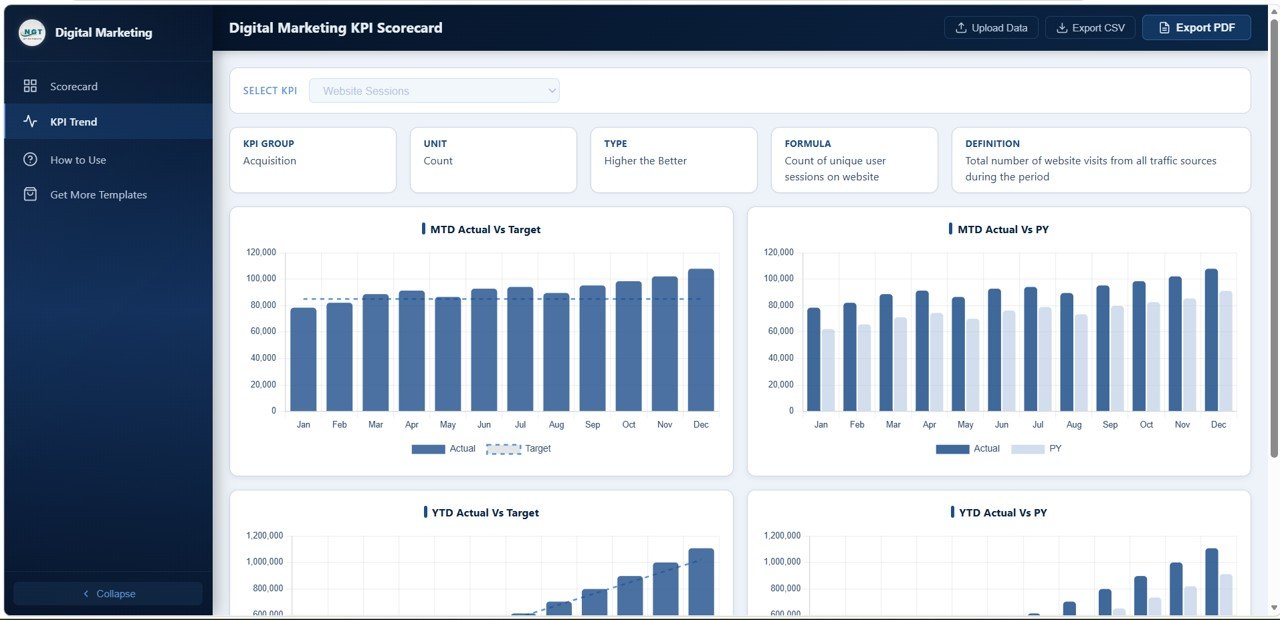
The Better when column follows the screenshot: with Vs. set to Previous Year every card is green, and Cost Per Acquisition, Bounce Rate and Unsubscribe Rate are green because they fell. Each KPI’s exact formula, unit, group and direction live in the data file and appear on the KPI Trend page. For example, Website Sessions is in the Acquisition group, its unit is Count, its type is Higher the Better, and its formula is “Count of unique user sessions on website”. The template uses HTB (Higher the Better) and LTB (Lower the Better) types, so measures such as cost or opt-outs can be set to judge lower values as better.
Page-by-Page Walkthrough
1. Scorecard Page
Ten cards sit in a two-row grid. Each card shows the KPI name, a traffic-light dot, the current value, the Target Value, the Change against the comparison you chose, a percentage change, and a small sparkline of the monthly trend. Three controls sit above the grid:
- Select Month – the reporting month (Jan to Dec).
- MTD / YTD – switch between the single month and the year to date.
- Vs. – compare against Target or Previous Year.
The How to Use page explains the traffic light: green means on or above target, yellow means within 10% of target, and red means more than 10% below target. In the screenshot, with Vs. set to Previous Year, all ten cards show a green light, and every KPI has improved on last year. For the lower-the-better measures (Cost Per Acquisition, Bounce Rate and Unsubscribe Rate) the improvement is a fall, which is why their changes are negative: -$6.70, -6.6 and -0.2.
Worked Example: Reading the Change Figures
With Vs. set to Previous Year, the change on each card is the current value minus last year’s value, and the percentage is that change divided by last year’s value. Take two cards from the screenshot:
Website Sessions:  actual 82.2K, change +16.4K
  Previous year  = 82.2K - 16.4K = 65.8K
  % change       = 16.4K / 65.8K = about +24.9%

Conversion Rate:   actual 3.1, change +0.7
  Previous year  = 3.1 - 0.7 = 2.4
  % change       = 0.7 / 2.4 = about +29.2%
Both results agree with the cards (+24.8% and +29.2%); the tiny gap on Website Sessions comes from the card values being rounded to one decimal place in thousands. Now apply the How to Use rule against target instead: Website Sessions at 82.2K is about 96.7% of its 85.0K target, so it is within 10% of target, which the guide describes as yellow, even though it is well ahead of last year. That is exactly why the Vs. switch matters: the same number can look strong against history and still need work against plan.
2. KPI Trend Page
Choose a KPI from Select KPI and the page shows an info bar with KPI Group, Unit, Type, Formula and Definition, followed by four monthly charts: MTD Actual Vs Target, MTD Actual Vs PY, YTD Actual Vs Target and YTD Actual Vs PY. In the sample, Website Sessions generally climbs through the year and finishes December above its target line.
3. How to Use Page
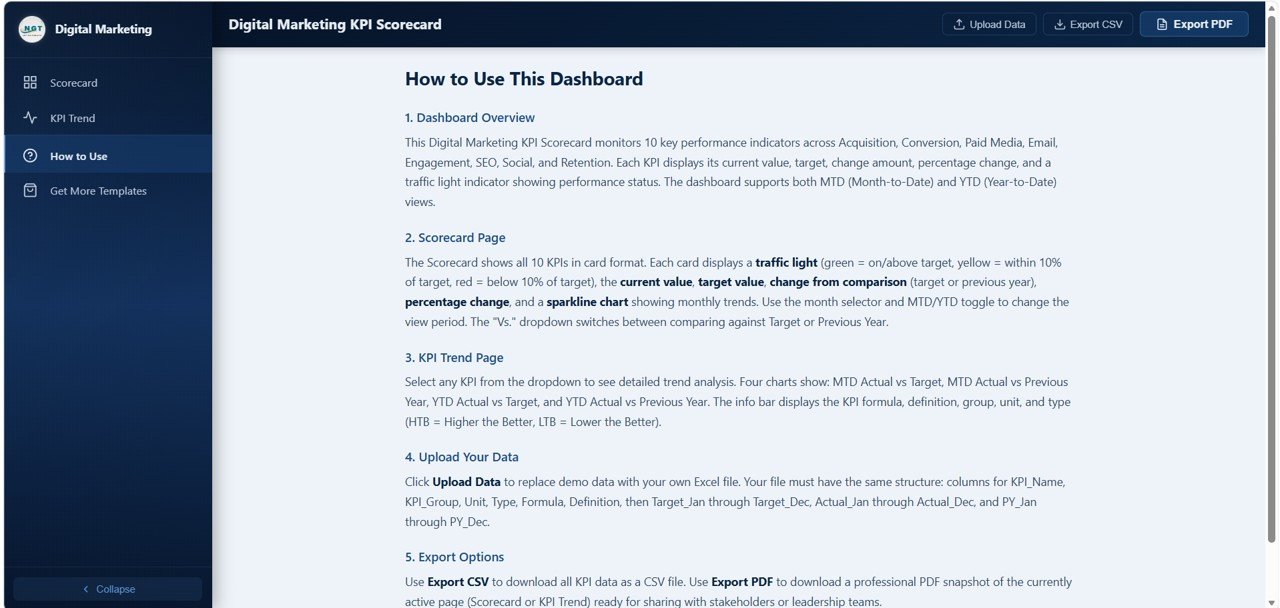
A built-in guide in five parts: Dashboard Overview, Scorecard Page, KPI Trend Page, Upload Your Data and Export Options. It also lists the exact column layout the upload file needs, which is the most useful reference when you prepare your own data.
How to Use It With Your Own Data
- Download the ZIP, extract it and open index.html in Chrome, Edge, Firefox or Safari.
- Open the Excel data file included in the download. Each row is one KPI.
- Keep the column structure: KPI_Name, KPI_Group, Unit, Type, Formula, Definition, then Target_Jan to Target_Dec, Actual_Jan to Actual_Dec and PY_Jan to PY_Dec.
- Set Type to HTB or LTB for each KPI so the status logic reads the direction correctly.
- Enter your monthly targets, actuals and last year’s values, then save the file.
- Click Upload Data and choose the file. All cards, lights and trend charts refresh.
- Use Export PDF for a snapshot of the page you are viewing, or Export CSV for the KPI data.
If you want to go further with building scorecards and dashboards from your own data, the Excel Pivot Tables & Dashboards course on NextGenTemplates Academy covers the reporting side step by step.
Scorecard vs Spreadsheet vs Marketing Platform
| Need | Plain spreadsheet | This HTML scorecard | Marketing platform reports |
|---|---|---|---|
| Setup effort | You build every card and chart | Ready layout; fill in the Excel file | Connect data sources and configure reports |
| Traffic-light status | Manual conditional formatting | Built in, with HTB/LTB logic | Varies by tool |
| MTD / YTD and vs PY | Extra formulas | One-click toggles | Usually available |
| Live data connection | Possible with add-ons | No; you upload a file | Yes |
| Ongoing cost | None | One-time template purchase | Usually a subscription |
Real-World Use Cases
- An in-house marketing lead exports the Scorecard to PDF each month for the leadership meeting, switching Vs. to Target to show which measures are behind plan.
- An agency account manager keeps one data file per client and uploads the right file before each monthly review call.
- A freelance marketer running SEO, ads and email for a small business uses the YTD view to show progress towards annual goals.
Best Practices
- Agree the ten KPIs and their targets before the year starts, and avoid changing definitions mid-year.
- Write a clear Definition and Formula for every KPI in the data file so anyone reading the KPI Trend page understands it.
- Look at both comparisons: Vs. Previous Year shows momentum, Vs. Target shows whether you are on plan.
- Work on red KPIs first, then yellow, and check the sparkline to see whether a problem is new or long-running.
- Update the file soon after month end, once channel data has settled.
Who Should Not Use This Template
The scorecard does not connect to Google Analytics, ad platforms or email tools; you enter or paste the numbers into Excel and upload them. It tracks a fixed set of ten KPIs, so teams that need campaign-level or creative-level analysis should pair it with a full dashboard. It also has no user logins, so it is not suited to sharing sensitive figures across a large organisation.
Related Templates and Guides
If you work in spreadsheets, read the guide to the Digital Marketing KPI Scorecard in Google Sheets or the broader Marketing KPI Scorecard in Google Sheets. For campaign-level analysis in the browser, see the Digital Marketing Campaign Dashboard in HTML and the Marketing Dashboard in HTML. Finance teams can look at the Finance KPI Scorecard in HTML.
Related template: Digital Marketing KPI Scorecard in Excel for teams that prefer to work inside Excel.
Frequently Asked Questions
Which KPIs does the Digital Marketing KPI Scorecard in HTML track?
Website Sessions, Conversion Rate, Cost Per Acquisition, Return on Ad Spend, Email Open Rate, Bounce Rate, Organic Traffic, Social Engagement, Customer Retention and Unsubscribe Rate.
How does the traffic light decide the colour?
According to the built-in guide, green means on or above target, yellow means within 10% of target and red means more than 10% below target. The KPI’s Type (Higher the Better or Lower the Better) sets which direction counts as good.
Can I rename the KPIs or use different ones?
Yes. KPI names, groups, units, types, formulas and definitions all come from the Excel data file, so you can replace them with your own as long as you keep the column structure.
Does it work offline?
The product page says it works without an internet connection: once extracted, index.html runs locally in your browser.
Can I export the scorecard for a report?
Yes. Export PDF saves a snapshot of the page you are viewing, and Export CSV downloads the KPI data.
Does it pull data from Google Analytics automatically?
No. You update the Excel file with your numbers and upload it. This keeps the template simple and private, but it is a manual step each month.
Wrapping Up
The Digital Marketing KPI Scorecard in HTML gives you a clear, one-screen answer to the two questions most marketing reviews come down to: are we on target, and are we ahead of last year? Fill in the Excel file with last month’s numbers, upload it, and start the next review with the red and yellow cards.
Get the Digital Marketing KPI Scorecard
📅 Last updated: October 2026