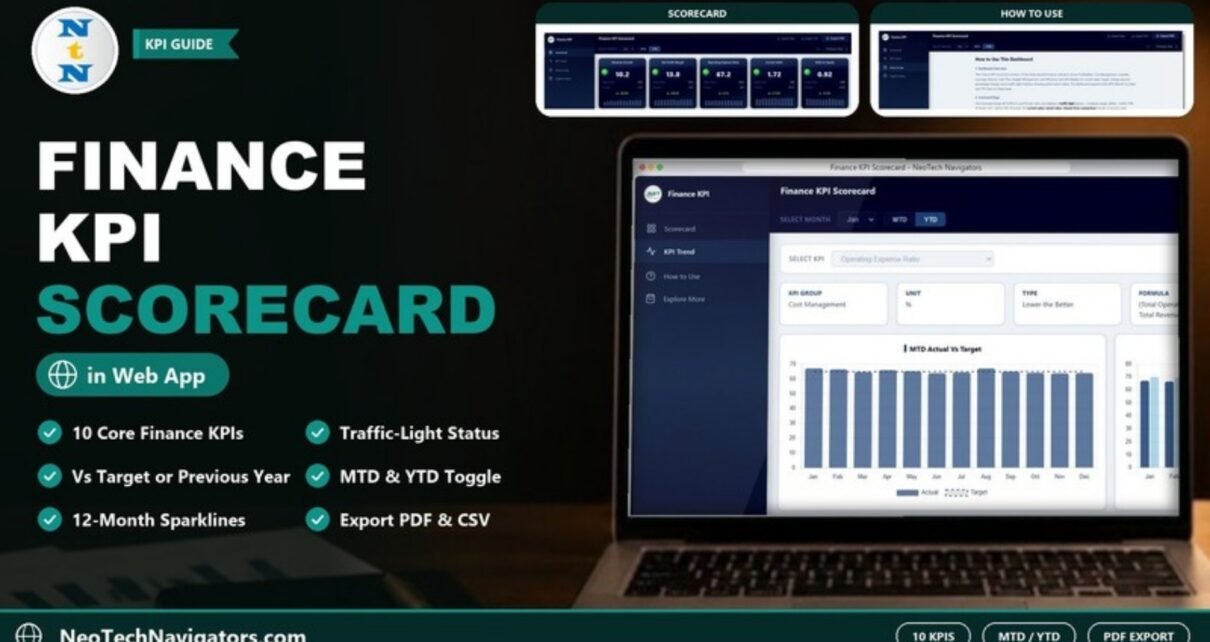
The Finance KPI Scorecard in HTML puts ten core financial KPIs on one screen, each with a traffic light, its target, the change against your chosen benchmark and a twelve-month sparkline. It is made for finance managers, controllers, CFOs and small business owners who want a monthly financial health check they can open in a browser and share as a PDF.
The scorecard runs from an index.html file with nothing to install. It has four pages (Scorecard, KPI Trend, How to Use and Explore More), a month selector, an MTD/YTD toggle, a Vs. Target / Previous Year switch and buttons for Upload Data, Export CSV and Export PDF. Your own numbers go into a Data.xlsx template with monthly Target, Actual and Previous Year columns.
Get the Finance KPI Scorecard in HTML
What the Finance KPI Scorecard in HTML Is For
Monthly finance packs often run to many pages of tables. Leaders still ask the same short questions: Are we on target? Better or worse than last year? Where should we look first? A scorecard answers those questions in seconds by showing every KPI in the same format, with colour doing the first pass of analysis.
The ten KPIs cover the groups listed in the built-in guide: Profitability, Cost Management, Liquidity, Leverage, Returns, Cash Flow, Budget Management and Efficiency. Each KPI is classed as Higher the Better or Lower the Better, so a fall in a cost ratio shows as good news rather than bad.
The 10 KPIs in the Scorecard
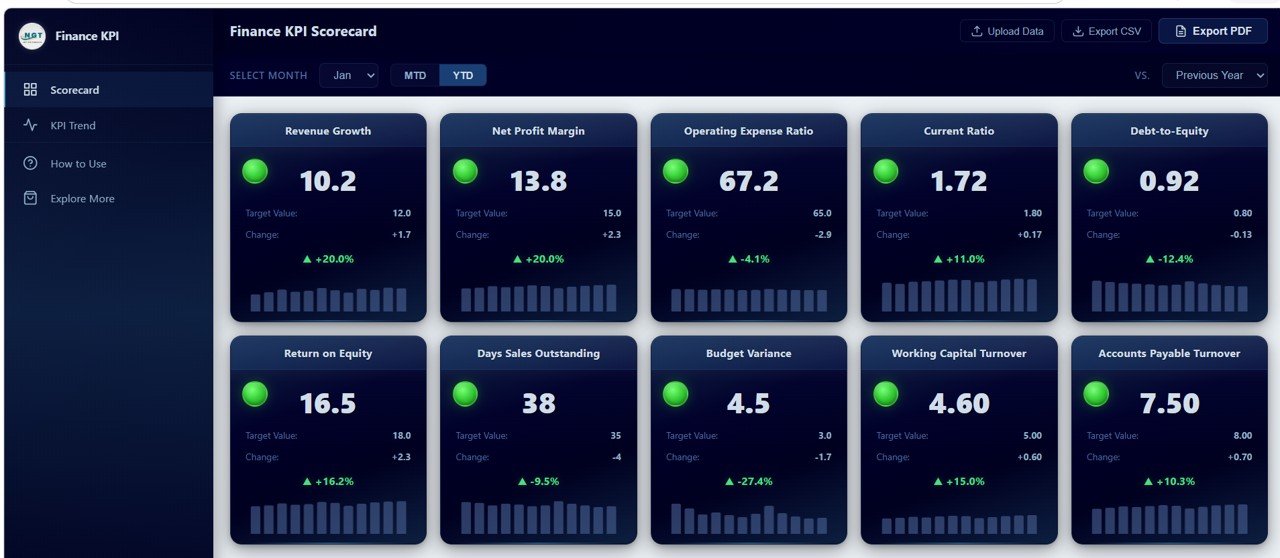
The sample values below come from the Scorecard page with Jan, YTD and Vs. Previous Year selected. The formula for Operating Expense Ratio is the one shown in the template’s KPI Trend info bar; for the other KPIs the formula column gives the standard textbook definition, and you should check the template’s own Formula field (or your company’s definition) before relying on it. The “better when” column reflects how the scorecard treats each KPI in the sample: KPIs that fell versus last year still show a green light, which marks them as Lower the Better.
| KPI | What it measures | Formula | Better when | Sample (Target) |
|---|---|---|---|---|
| Revenue Growth | How fast revenue is rising | Standard: (Current revenue − Prior revenue) ÷ Prior revenue × 100 | Higher | 10.2 (12.0) |
| Net Profit Margin | Profit kept from each unit of revenue | Standard: Net profit ÷ Revenue × 100 | Higher | 13.8 (15.0) |
| Operating Expense Ratio | Operating costs as a percentage of total revenue | (Total Operating Expenses ÷ Total Revenue) × 100 (from template) | Lower | 67.2 (65.0) |
| Current Ratio | Ability to pay short-term obligations | Standard: Current assets ÷ Current liabilities | Higher | 1.72 (1.80) |
| Debt-to-Equity | How much the business relies on debt | Standard: Total debt ÷ Shareholders’ equity | Lower | 0.92 (0.80) |
| Return on Equity | Profit generated on owners’ capital | Standard: Net profit ÷ Shareholders’ equity × 100 | Higher | 16.5 (18.0) |
| Days Sales Outstanding | Average days to collect receivables | Standard: Accounts receivable ÷ Revenue × days in period | Lower | 38 (35) |
| Budget Variance | Gap between actual results and budget | Described in the template’s KPI Trend info bar | Lower | 4.5 (3.0) |
| Working Capital Turnover | Revenue generated per unit of working capital | Standard: Revenue ÷ Average working capital | Higher | 4.60 (5.00) |
| Accounts Payable Turnover | How often supplier balances are paid in a period | Standard: Purchases (or COGS) ÷ Average accounts payable | Higher | 7.50 (8.00) |
You can check the change figures yourself. Revenue Growth shows 10.2 with a change of +1.7 and +20.0%, which means last year’s value was 8.5 (10.2 − 8.5 = 1.7, and 1.7 ÷ 8.5 = 20%). Operating Expense Ratio shows 67.2 with a change of −2.9 and −4.1%, so the prior-year value was 70.1, and the drop is shown in green because this KPI is Lower the Better.
Scorecard Page
The Scorecard page has three controls at the top: Select Month, the MTD / YTD toggle and the Vs. dropdown for Target or Previous Year. Below them, ten cards sit in a two-row grid. Each card shows the KPI name, a traffic light, the current value, the Target Value, the change from the selected comparison, the percentage change and a sparkline of monthly actuals.
According to the template’s guide, the light is green when a KPI is on or above target, yellow when it is within 10% of target, and red when it is more than 10% below target. Each KPI’s Type (Higher the Better or Lower the Better) decides which direction counts as good.
KPI Trend Page
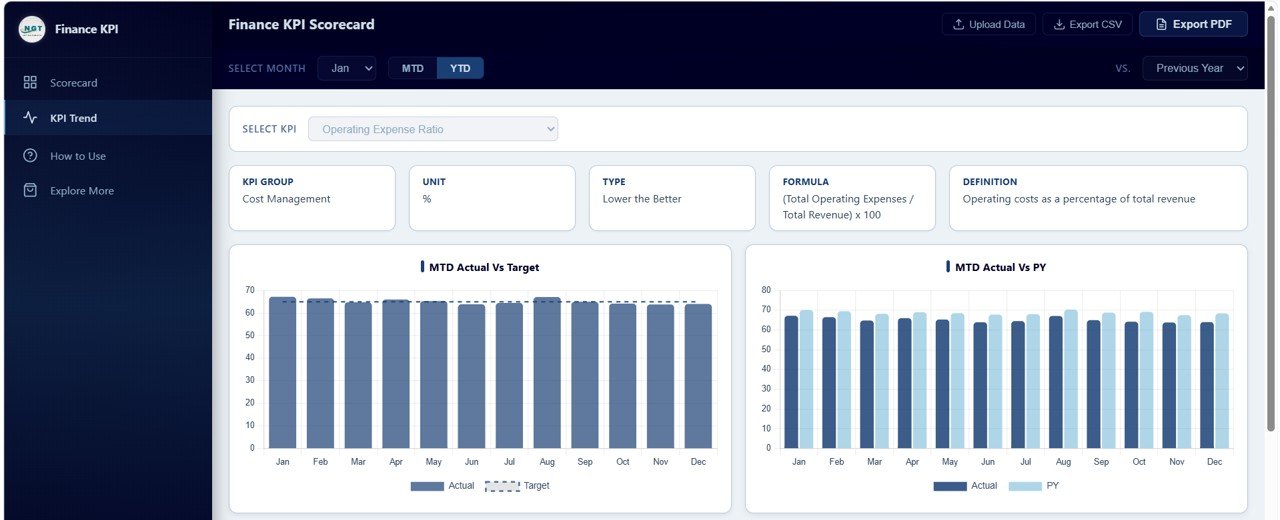
Pick a KPI from Select KPI and an info bar shows its KPI Group, Unit, Type, Formula and Definition. For Operating Expense Ratio, for example, it reads: Cost Management, %, Lower the Better, (Total Operating Expenses / Total Revenue) x 100, and “Operating costs as a percentage of total revenue”.
Below the info bar are four charts: MTD Actual vs Target, MTD Actual vs PY, YTD Actual vs Target and YTD Actual vs PY, each covering January to December. The monthly view shows which months slipped; the year-to-date view shows whether the year as a whole is still on track.
How to Use and Explore More Pages
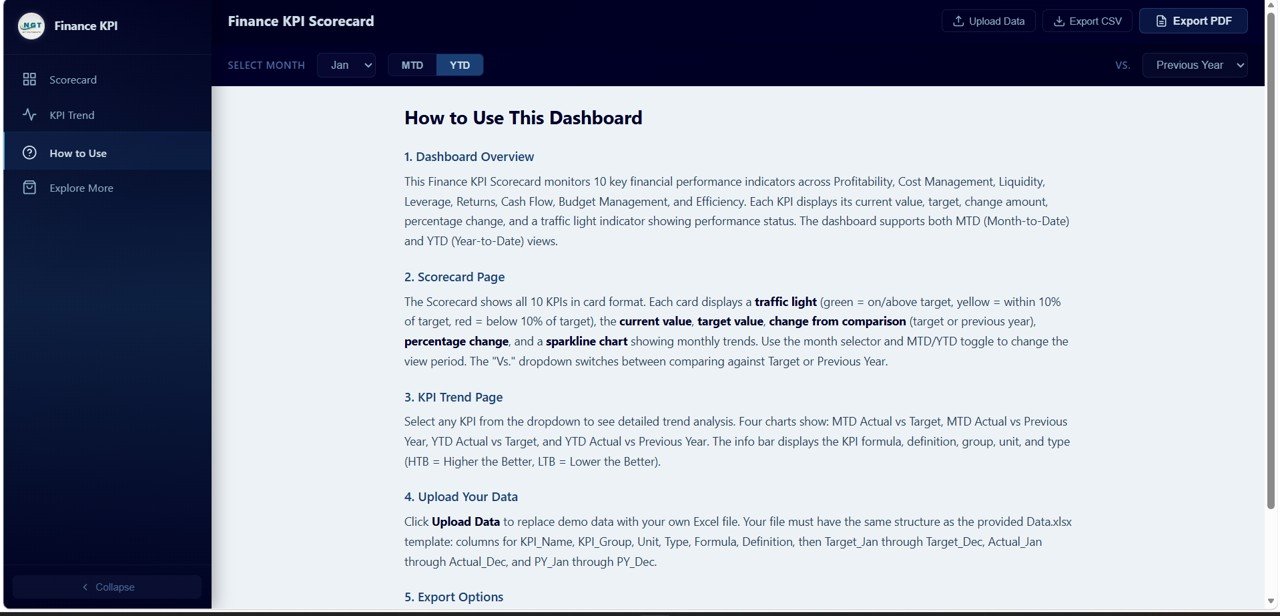
The How to Use page explains each part of the dashboard: the overview, the traffic light rules, the trend page, uploading data and the export options. The Explore More page links to related templates from NextGenTemplates.
How to Use It With Your Own Data
- Unzip the download and open index.html in your browser to explore the demo data.
- Open the provided Data.xlsx. Its columns are KPI_Name, KPI_Group, Unit, Type, Formula and Definition, followed by Target_Jan to Target_Dec, Actual_Jan to Actual_Dec and PY_Jan to PY_Dec.
- Edit the KPI rows to match your own definitions, and set Type correctly (Higher the Better or Lower the Better) so the traffic lights read the right way.
- Enter monthly targets, actuals and last year’s values, keeping the same structure, and save the file.
- Click Upload Data and choose your file. All cards, lights and charts update.
- Pick the month, MTD or YTD and the comparison, then use Export PDF for the board pack or Export CSV for further analysis.
Real-World Use Cases
- Monthly close review. A controller selects the closed month in MTD mode, checks which lights are yellow or red and opens KPI Trend for those KPIs before the review meeting.
- Board reporting. A CFO switches to YTD and Vs. Target, exports the PDF and attaches it to the board pack as a one-page summary.
- Owner check-in. A small business owner compares this year with last year to see whether DSO and the current ratio are moving in the right direction before talking to the bank.
Best Practices
- Agree each KPI’s formula and target with your team before the year starts, so the colours mean the same thing to everyone.
- Use MTD for operational follow-up and YTD for strategic and board discussions.
- Treat yellow lights as early warnings and look at the trend chart before acting.
- Update Data.xlsx right after month-end close so the PDF always matches your books.
- Keep last year’s values complete, or the Vs. Previous Year comparison will be misleading.
Limitations
- It is a scorecard of ten monthly KPIs, not an accounting system. You calculate the KPI values from your books and enter them.
- There is no direct link to ERP or accounting software; data comes from the Excel upload.
- It covers one twelve-month year at a time, so multi-year analysis needs separate files.
- Companies that need transaction-level drill-down should use a full dashboard or BI tool alongside it.
Scorecard Options Compared
| Option | Best for | Trade-off |
|---|---|---|
| Manual spreadsheet | Very small teams with a few KPIs | Formatting and charts built by hand each month |
| Finance KPI Scorecard in HTML | Monthly KPI review and PDF reporting | Values entered from your own calculations |
| BI platform | Live data and deep drill-down | Setup time, data connections and licences |
Related Guides and Templates
If your team prefers spreadsheets, see the Finance KPI Scorecard in Google Sheets and the Finance KPI Dashboard in Google Sheets. For broader company reporting in the same browser format, look at the General Management KPI Scorecard in HTML and the Small Business CFO Dashboard in HTML. Teams that focus on risk can compare the Financial Risk KPI Dashboard in Google Sheets.
Related templates: the same KPI set is available as the Finance KPI Scorecard in Excel and the Finance KPI Scorecard in Google Sheets.
If you want to learn how scorecards and dashboards like this are built, the Excel Pivot Tables and Dashboards course on NextGenTemplates Academy is a structured place to start.
Frequently Asked Questions
Which KPIs does the Finance KPI Scorecard track?
Ten: Revenue Growth, Net Profit Margin, Operating Expense Ratio, Current Ratio, Debt-to-Equity, Return on Equity, Days Sales Outstanding, Budget Variance, Working Capital Turnover and Accounts Payable Turnover.
What do the traffic light colours mean?
The built-in guide says green means on or above target, yellow means within 10% of target and red means more than 10% below target. Each KPI’s Type setting (Higher the Better or Lower the Better) tells the scorecard which direction counts as an improvement.
What is the difference between MTD and YTD?
MTD shows the selected month only. YTD shows the running total or position from the start of the year up to the selected month, which is better for judging progress against an annual target.
Can I change or replace the ten KPIs?
Yes. KPI names, groups, units, type, formula text and definitions all live in Data.xlsx. Keep the column structure the same and upload the edited file.
How do I share the scorecard with people who do not use the file?
Choose the month and view you want, then click Export PDF. You can also export the figures to CSV.
What software do I need to use it?
You only need a modern web browser to open index.html, and Excel (or a compatible spreadsheet app) to edit Data.xlsx.
Wrapping Up
The Finance KPI Scorecard in HTML gives you a clear, one-page view of ten financial KPIs with targets, prior-year comparisons and trends. Fill in Data.xlsx with your last closed month, upload it, and use the colours to decide which two or three numbers deserve attention at your next finance review.
Get the Finance KPI Scorecard in HTML
📅 Last updated: October 2026